This article is about creating a bootable USB drive from an ISO image. Below are methods that will work on Linux and Windows.
Create bootable USB drive on Windows
On Windows, there are several software that you can use to create a bootable USB drive from an ISO image. The most powerful and easy tool is Rufus. Go to rufus and download rufus for windows. The good thing about this tool is that It's portable and lightweight. There is no need to install any application.
After downloading, Start Rufus as administrator, and you'll see something similar to this:
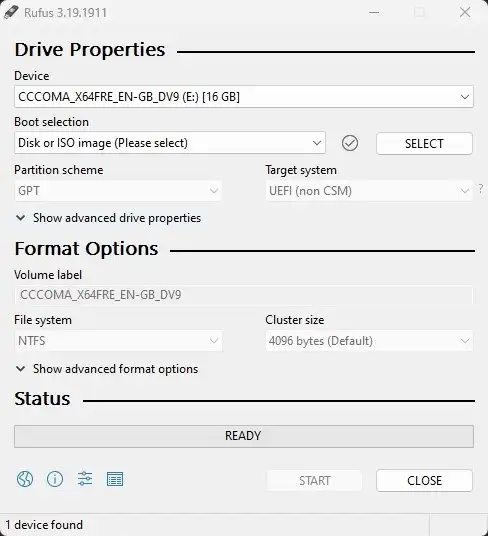
Your USB drive will be formatted. Make sure it does not contain any useful data. Follow these steps to create a bootable USB drive from your ISO image:
- Connect USB drive: Insert your USB drive in the system. Rufus will automatically detect your USB drive. If not, close Rufus and start again.
- Choose ISO image: Select your ISO image by clicking on 'SELECT' button. Make sure 'Disk or ISO image' option is selected in 'Boot selection',
- Boot configuration: This is the most cruicial part. Partition scheme and Target system should be configuered as per your system. For newer systems, there is no need to change these options. You need to make sure that your system supports UEFI boot mode before selecting 'GPT'. If your system does not support UEFI boot, then select 'MBR' in 'Partition scheme'.
- Start: There is no need to change rest of the settings. Change Volume label if you want. After that, click on Start to start the process.
You will see the progress bar of ISO image burning into the USB drive. After a couple of minutes (depending on ISO image size), your bootable USB drive will be ready to use.
Create bootable USB drive on Linux
On Linux, there are plenty of ways to create a bootable USB drive from an ISO image. As compared to other OS, It's very easy on Linux by using dd, one of the most powerful command line utility tool in Linux. Use the below command:
sudo dd if=/home/protocolten/image.iso of=/dev/sda1 bs=4M status=progress
Replace '/home/protocolten/image.iso' with path of your ISO image
and '/dev/sda1' with your USB drive partition. You can get your
USB drive partition identifier using lsblk command in the terminal. Make sure to use the
partition identifier instead of the device identifier.
If you are using Linux with GUI, I recommend you to use Balena etcher for creating a bootable USB drive using an ISO image.